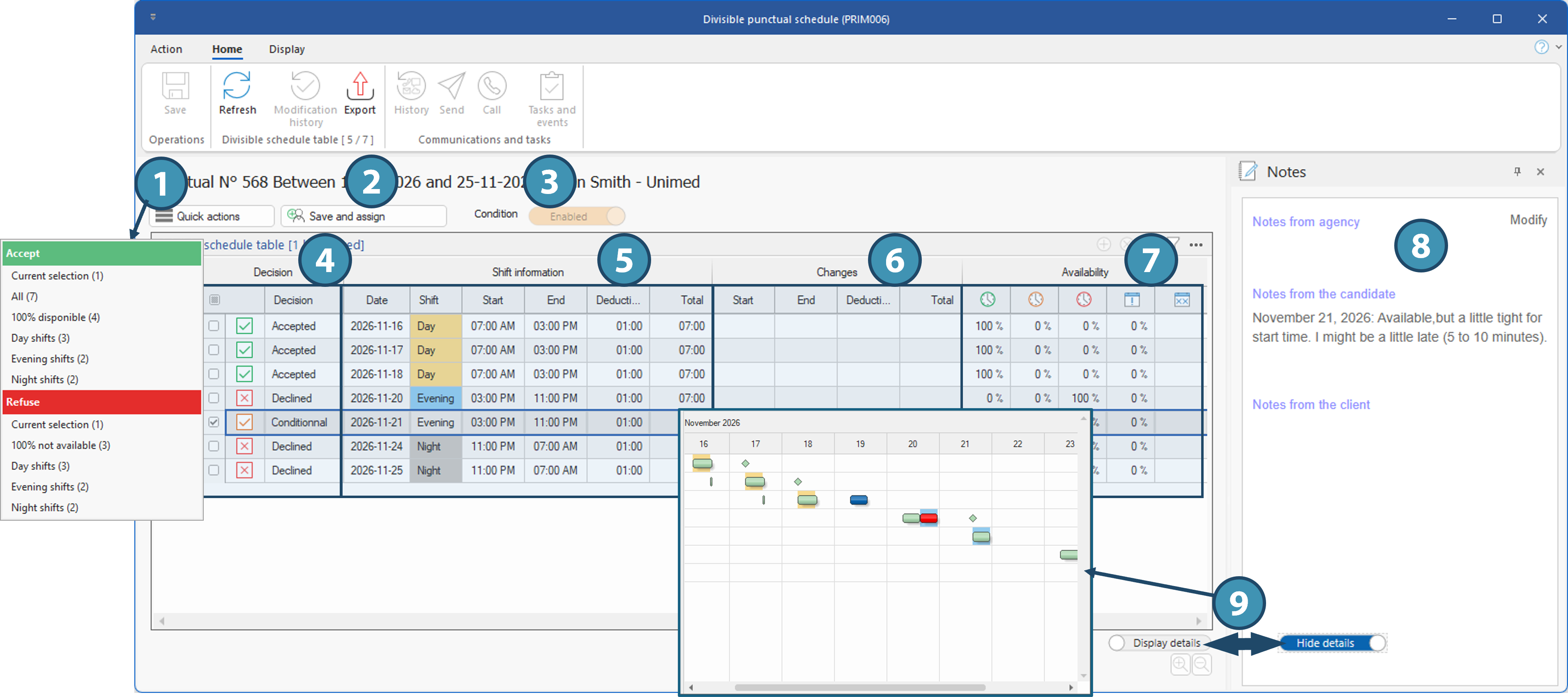
Divisible punctual schedule (PRIM006) window
This window is available only for divisible one-time schedules. It can be accessed via the  button in the planner and serves two main purposes:
1.To allow the agency to view the acceptance status of each shift in a divisible schedule for a specific candidate, or to modify or set that status for the candidate.
2.To assign the candidate to the desired shifts, taking into account any notes that may be conditions for the assignment, which will be displayed on the right.
Overview of the Window
The window displays a table showing the candidate’s shift selection for each shift, the hours, and information on availability, schedule conflicts, or double-shift situations—information that can also be viewed in graph form by clicking “Details.” In addition, the Notes pane displays the candidates’ notes. Here are some explanations of the various items in the window.
1.Quick actions: This button opens a menu that lets you select which shifts to accept or reject based on certain criteria, such as all shifts, shifts for which the candidate is available, shifts selected via the checkbox, or shift type (day, evening, night).
2.Save and assign: Saves the decisions and assigns the candidate to the accepted shifts.
3.Condition: Indicates whether the candidate has specified any conditions for the assignment. If the toggle is set to None, the agency can switch it to Enabled as needed. If the toggle is set to Enabled, it means the candidate has specified a condition that will be visible in the notes.
4.Decision Section : Displays the candidate’s decision for each shift on the schedule. The agency can modify this decision using a drop-down menu.
5.Shift Information Section : Displays the hours for each shift based on the initial request.
6.Modifications Section: Allows the agency to modify the hours for each shift as needed, based in particular on the conditions of the assignment.
7.Availability Section : Displays the candidate’s established availability for each shift included in the schedule as a percentage, as well as schedule conflicts and double-shift situations.
8.Notes Pane: Displays notes from the agency, the candidate, or the client for the entire schedule.
All notes are displayed in the window. If these notes are a condition for the assignment, the shifts in question will have the status “Conditional.” The agency must also accept these conditions in the “Review and acceptance of Assignation Constraints (PRIM052)” window, which will open, if applicable, when assigning the candidate. If you do not wish to accept the conditions requested by the candidate, you can modify the candidate’s response for the shift(s) in question.
9.Show Details / Hide Detailsbutton: Allows you to add a graphical display of availability to the table, as in the planner.