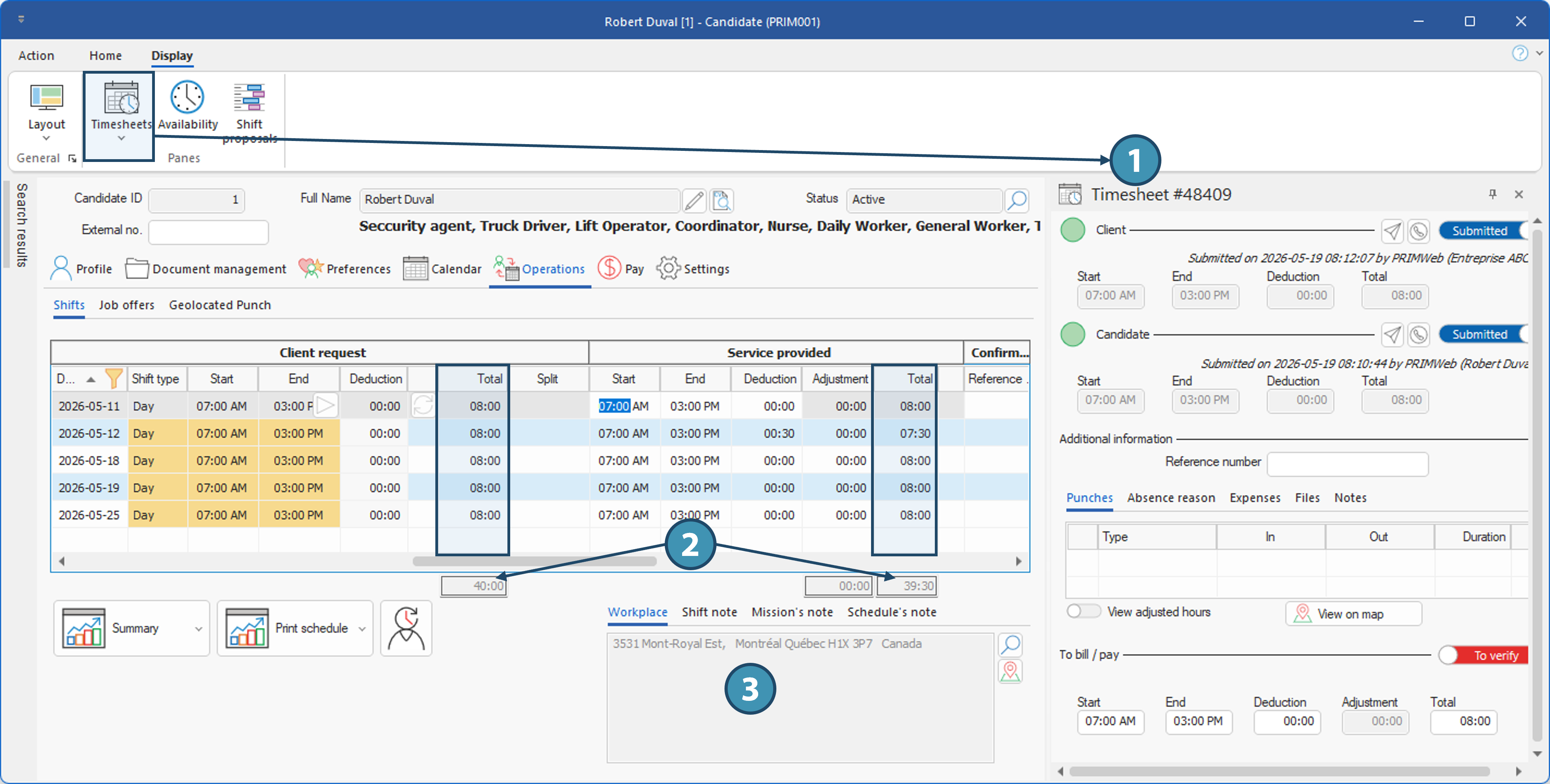
This tab lists all the shifts to which the candidate has been assigned according to the filters applied, including cancellations and absences where applicable. Shifts that are part of a grouped request are also included. You can also confirm hours and view timesheet data for a selected shift, once the timesheet pane(1) is open. Total hours for shifts displayed under the filters applied are shown at the bottom of the table, under the Total (2) column, whether in the initial request section or the service offered.
! Total hours include the hours of all shifts displayed according to the filters, regardless of their status, and therefore include the hours of cancelled or unfilled shifts. To see total hours for shifts scheduled and actually worked, apply the appropriate filters.
The buttons at the bottom of the screen allow you to perform certain actions:
 Display and print one of the "Shift Summary" reports, which will include the shifts visible on the screen. To send these reports by email, use the appropriate message templates instead. Display and print one of the "Shift Summary" reports, which will include the shifts visible on the screen. To send these reports by email, use the appropriate message templates instead.
 Displays and prints one of the Availability/Assignment reports. To send these reports by email, please use the appropriate message templates. Displays and prints one of the Availability/Assignment reports. To send these reports by email, please use the appropriate message templates.
 Displays the shift selected in the Shift (PRIM014) window. Displays the shift selected in the Shift (PRIM014) window.
On the right-hand side of this section, there are 4 sub-tabs (3) :
•Work location: Work location address of the selected shift.
•Shift note: Internal note added by the agency about the selected shift.
•Mission's note: Internal note added by the agency concerning the mission of a grouped request. If the selected shift is not part of a grouped request, the tab will be grayed out.
•Schedule's note: Internal note added by the agency about the schedule of a grouped request. If the selected shift is not part of a grouped request, the tab will be grayed out.
ⅰ A star to the right of a tab indicates that data is available in that tab for the selected shift .
ⅰ See the "Operations - Temporary" module for details of how to create, assign and manage temporary requests and one-off shifts.
|
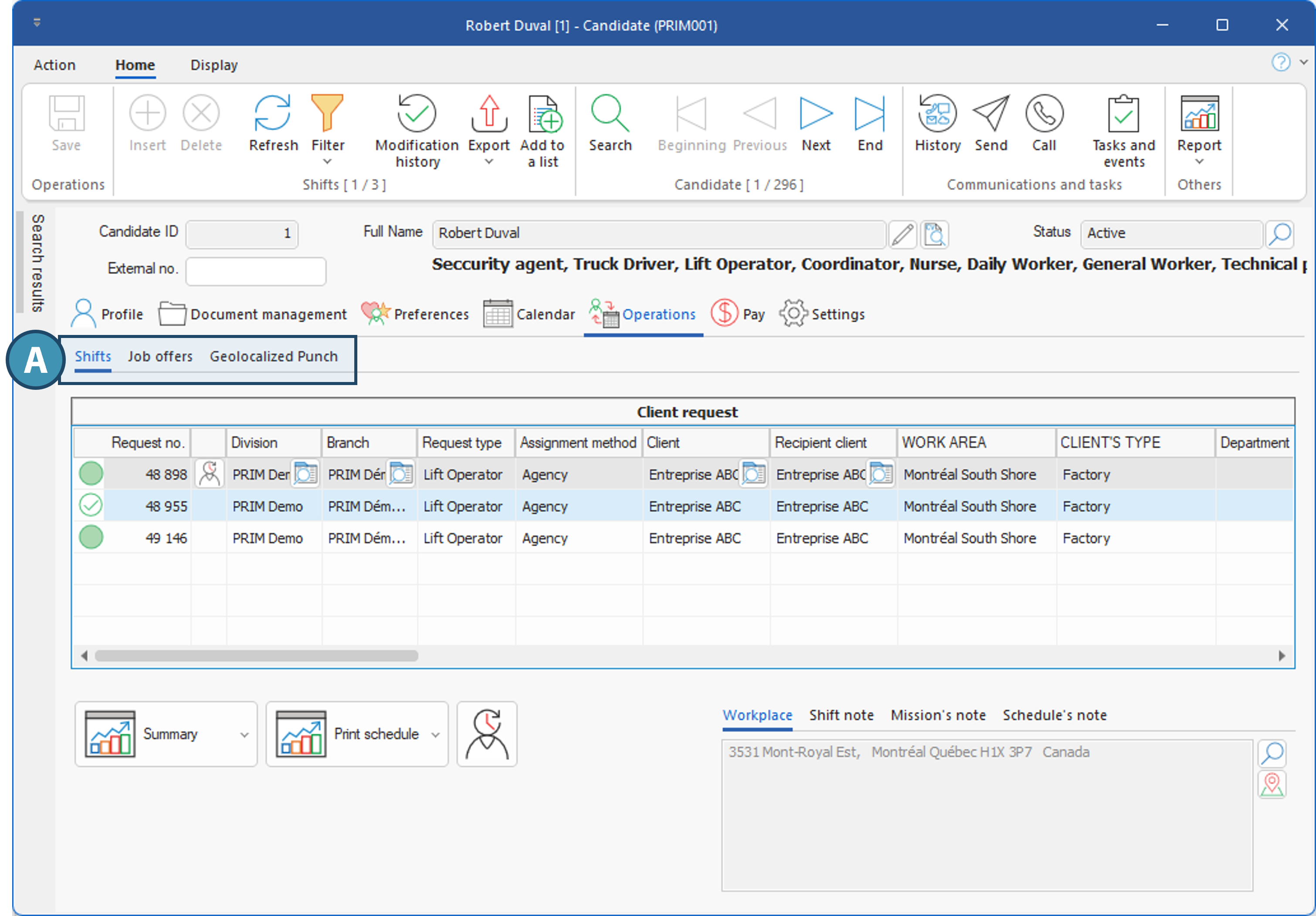
 Tab - Shifts
 button (1) in the Job offer title column opens the job offer in the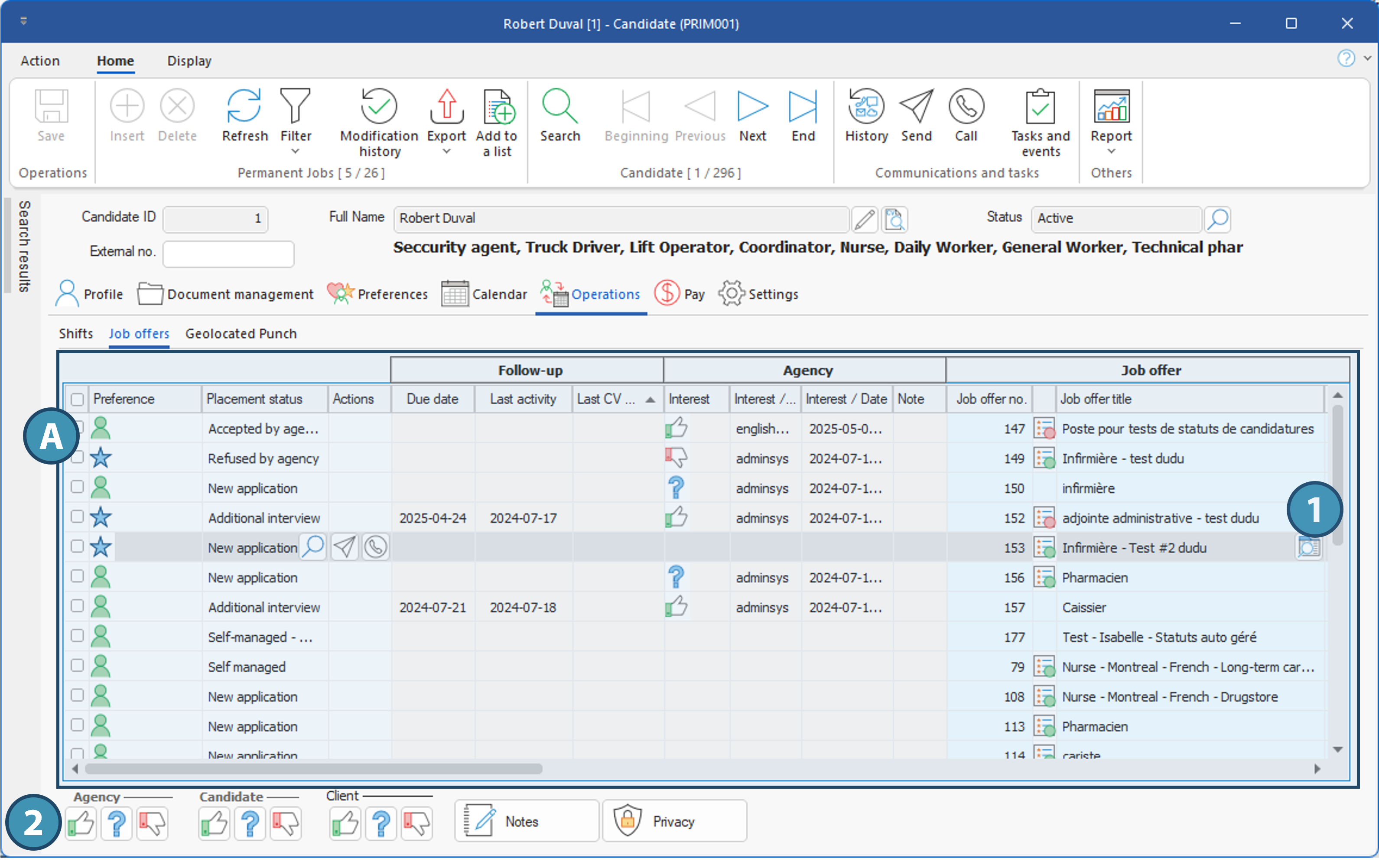
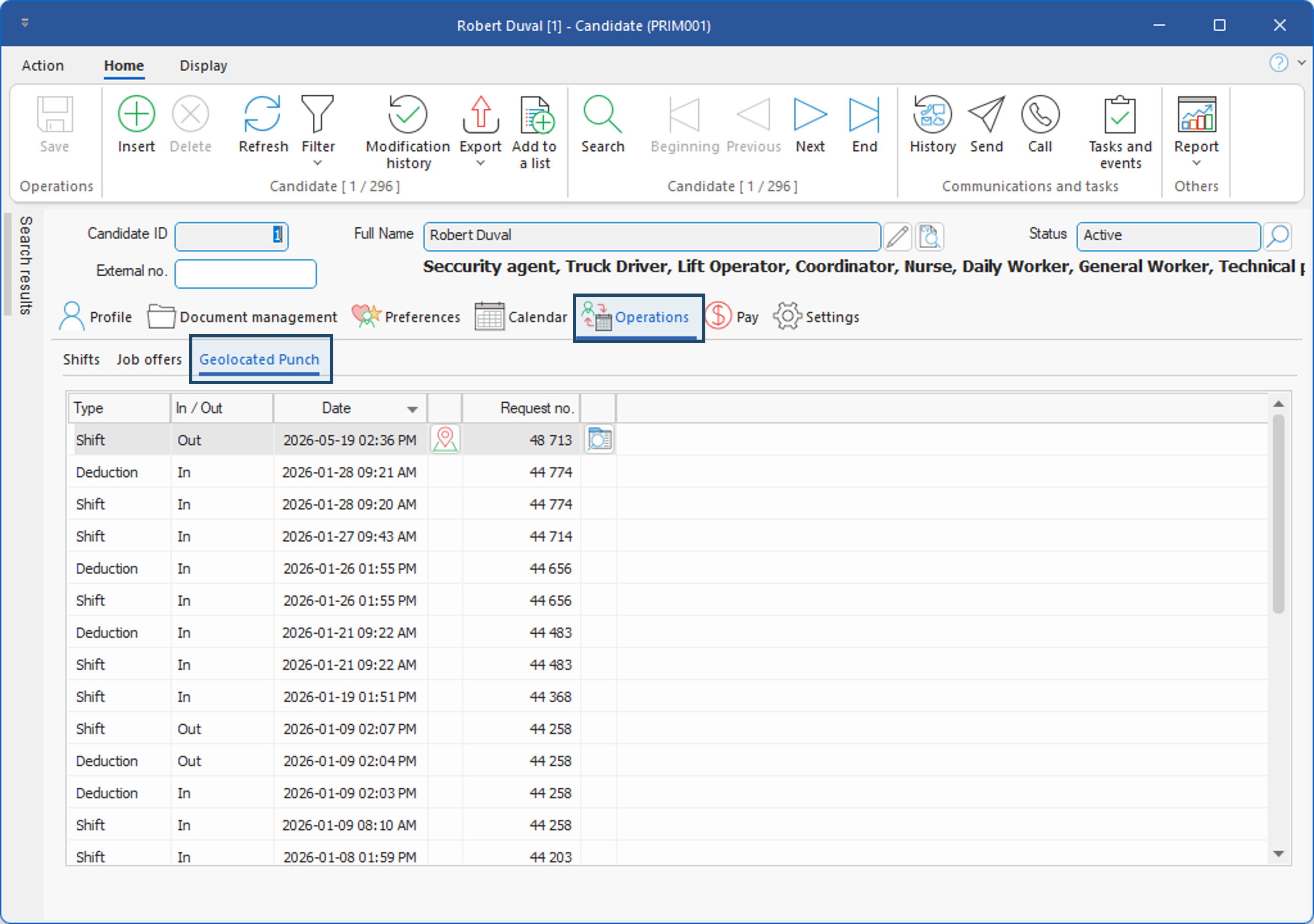
 : This button displays the location of the recording on a map.