!WARNING: This section is intended for advanced users and "Super users" of PRIM Logix.
The configuration items presented in this section may indeed have an impact on your operations.
If in doubt, consult your system administrator.
Please note that only users in the appropriate security groups can access the software configuration windows.
Share a configuration
Sharing a filter configuration partage d'un filtre créé par un utilisateur est possible avec d'autres utilisateurs de PRIM via les groupes de sécurité.
!Only a user in the proper security groups can associate a filter with one or more security groups in order to share a display configuration with other PRIM Logix users.
A filter and display configuration can be used by all users in a security group the configuration was shared with, but can only be modified by its creator. configuration
1.Open the filter configuration window from the window in which you are positioned.
2.Select a configuration from the list.
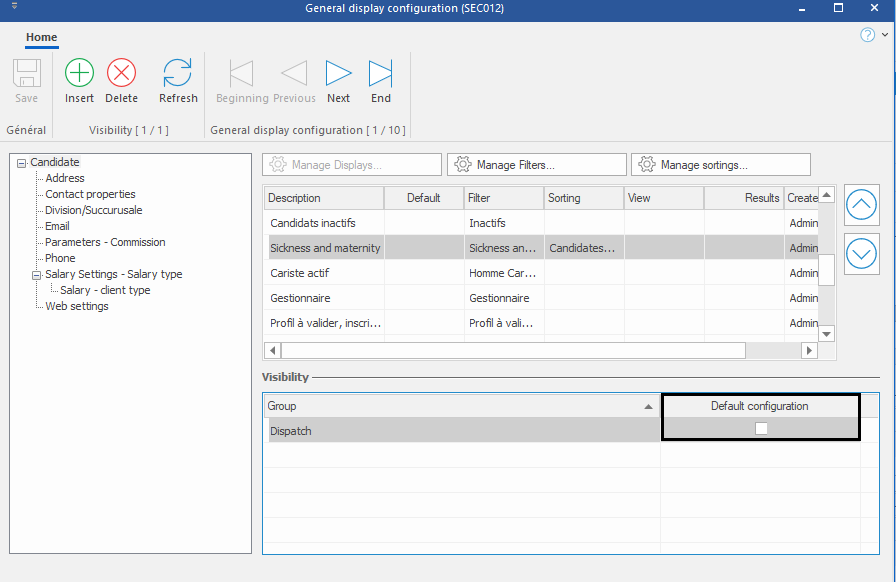
3.In the “Visibility” section, click on  (Insert) or on an empty line to open the security group selection window. (Insert) or on an empty line to open the security group selection window.
4.Choose one or more security groups for which the selected configuration will be visible and click OK. |
After giving access to the display configuration to a security group, a user with sufficient access will also be able to define whIbnether this configuration should be loaded by default for a given security group.
1.If you have the rights and permissions for this action, check the box in the "Default configuration" column for the desired security group, so that this configuration is applied by default to the users of this group when the window opens.
2.Click on  (Save). (Save).
|
 Visibility: Share a display configuration with a security group