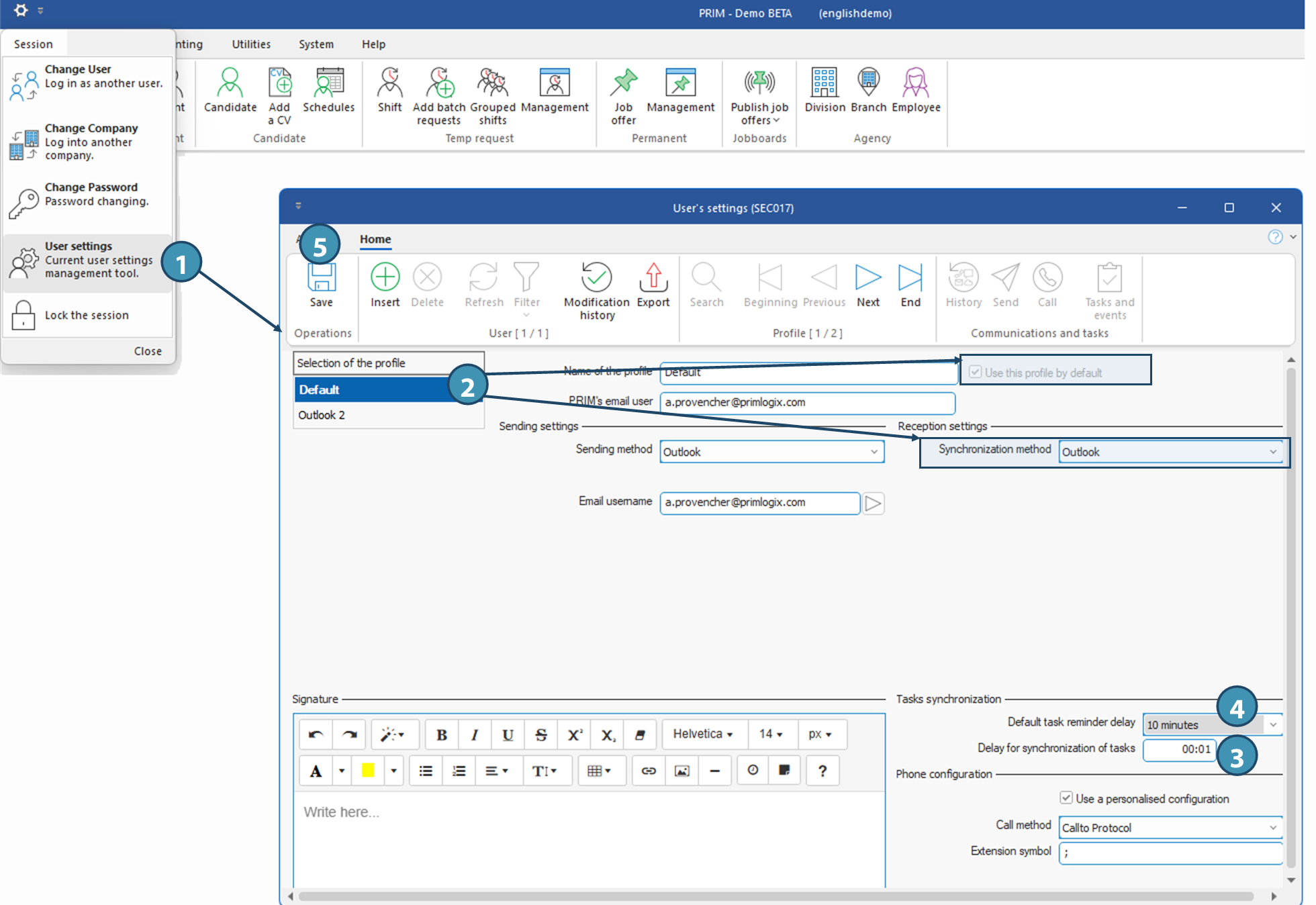
ⅰ This procedure can be carried out from the 2 task management windows: Tasks to do (WKF004) and Events and tasks management (WKF011).
There are 2 ways of synchronizing PRIM tasks in Outlook:
•Synchronize as tasks: they will appear in your Outlook task panes or lists.
•Synchronize as appointment: they will then appear in your calendar, on the due date indicated, and according to the duration specified. This type of synchronization is preferable if the task in question must be carried out at a specific time, for example, an interview with a candidate.
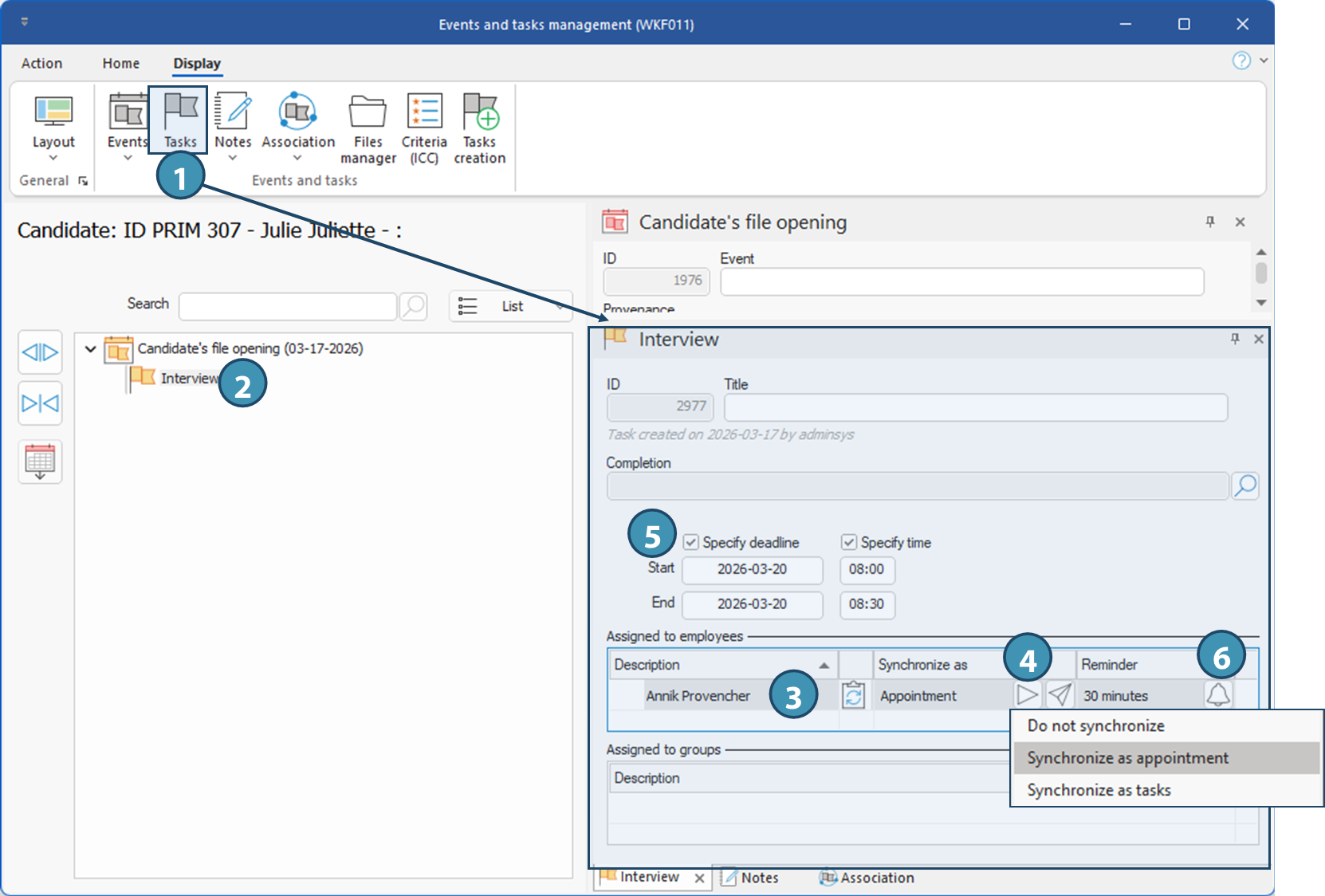
Here we illustrate the procedure from a candidate's file, in the events and tasks management window (WKF011), in list mode:
1.If not already open, launch the Tasks pane from the View ribbon.
2.In the right-hand pane, select the relevant task.
3.In the Tasks pane, move to the Assigned to employees section and select or add the employee for whom you wish to activate task synchronization.
4.Click on the  icon to select the type of synchronization: icon to select the type of synchronization:
•Appointment: The task will be displayed as an appointment in the Outlook calendar.
! A due date (start date and end date) and ideally a start and end time are required for this type of synchronization. If no time is specified, the appointment will be entered at midnight. No minimum duration is required, and the start and end times can be the same.
•Task: The task is added to the Outlook task list. It is not necessary to specify a due date.
5.If required, check the Specify deadline and Specify time boxes to add a start and end date and time.
6.If you wish, you can also specify a reminder delay in the "Reminder" column. Click on the bell to open the selection list and choose the reminder delay.
ⅰ The reminder delay configured in the task will take precedence over that configured in the user settings.
ⅰ The reminder will be displayed both in PRIM (bottom right-hand corner of the main PRIM window) and in Outlook, after synchronization.
The next time the user logs on, the task will be synchronized in his Outlook, provided Outlook Desktop is open at the time of connection to PRIM.
ⅰ The task synchronization button will turn blue  once the task has been synchronized. If the button remains grey once the task has been synchronized. If the button remains grey  when the user is logged in and their Outlook desktop is open at the same time as PRIM, check the synchronization settings in the user's profile or the task's synchronization type. when the user is logged in and their Outlook desktop is open at the same time as PRIM, check the synchronization settings in the user's profile or the task's synchronization type.
|