Window - Branch management (PRIM046)
The concept of a branch has been integrated into PRIM in order to offer you the possibility of making a link between your employees, your clients, your candidates and your various offices or workplaces.
If your agency has several offices located in different cities, you can associate your employees, candidates and clients with these branches. This will provide you with information related to each of your offices.
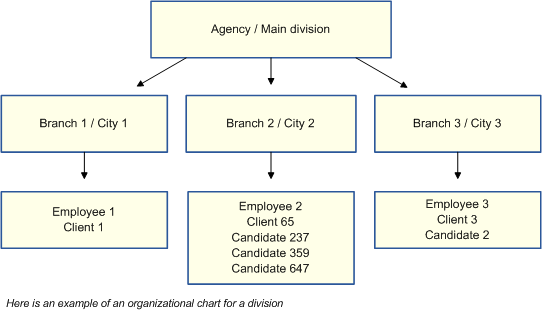
ⅰ Note that the division always represents the legal entity of the agency. For example, for tax management.
Some important facts about branches
•The association between the different types of records and the branch is optional.
•If your agency has only one branch, all types of files will be linked to it.
•The link between the file types and a branch is registered in the files. For example, a link between an employee and a branch is registered in the employee's file.
•The branch is not used for accounting purposes, however, the name of the branch is displayed in the lists of requests, requests to pay and requests to invoice.
•The column or field "Branch" is found in several PRIM windows.
•The concept of a branch will allow you to collect different information using filters in a more targeted way, for example, to obtain a list of requests for each branch.
•If the branch is linked to an employee or client, you will not have to enter this information when creating requests. The branch defined as default branch in a client's file will be automatically populated.
•The branch is independent of the division. When you create a request, you can change the branch or division if necessary.
•A candidate associated with a division and a branch as defaults may be assigned to requests from another branch.
•If a « Candidate » file has been created using the automatic resume analysis (parsing) , this file will be linked to the branch and division of the employee who performed the analysis. This information may be modified later.
ⅰIf the user who launched the analysis does not have a default branch, the main branch will be used and assigned to the candidate as the default branch.
Presentation of the window
The Branch management window contains all the information on each branch, for example, contact information, opening hours, associated candidates and clients, public holidays calendar used as well as default country and province/state. Here is a short description of the various tabs :
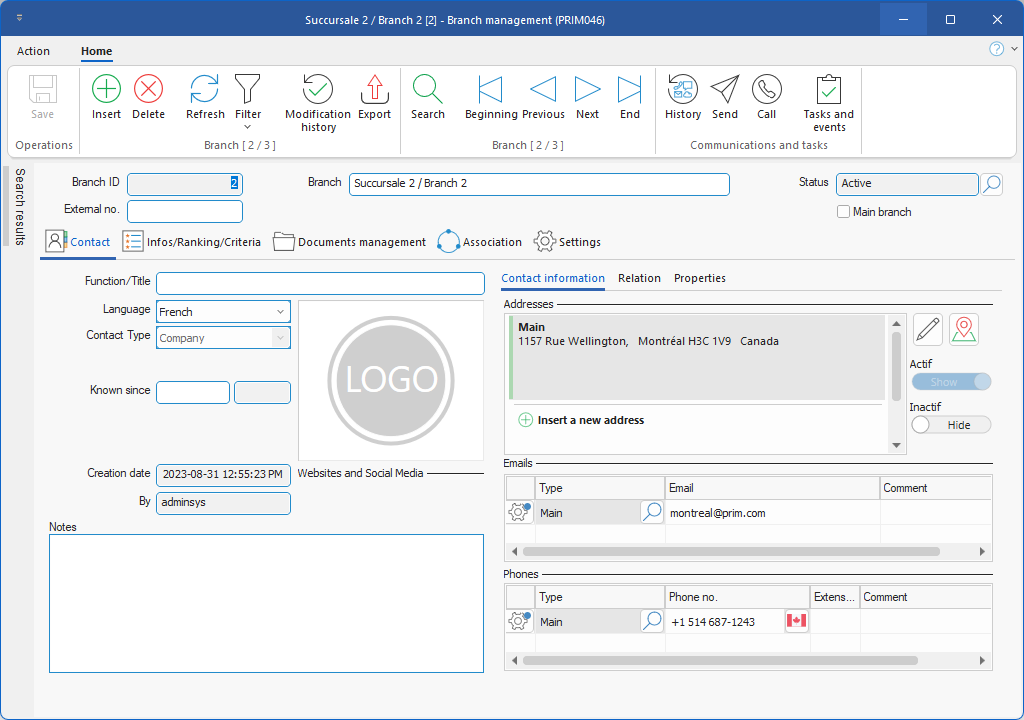
•Contact: You will find in this tap basic and contact information about the branch
•Infos/Ranking/Criteria: Although no subjects are included with the basic configuration, you can set up subjects that can be used in different ways, depending on your needs (for example, to configure some automation, or else).
•Docment management: Allows you to view or add documents related to the branch.
•Association: List of candidates, clients and agency employees linked to this branch.
•Settings: In this tab, you can specify the default holiday calendar for the branch, as well as default values (country and province/state).
▪General : Allows you to specify the default public holiday calendar for the branch, as well as the default values (country and province or state). These values will be used for candidates and clients associated with this branch.
▪Business hours: In this tab, you can define the opening hours for the branch, which can be used to create exceptions to the Assignment method.
▪Assignment rules: Set up assignment rules associated with a threshold-based warning system integrated into the planner.
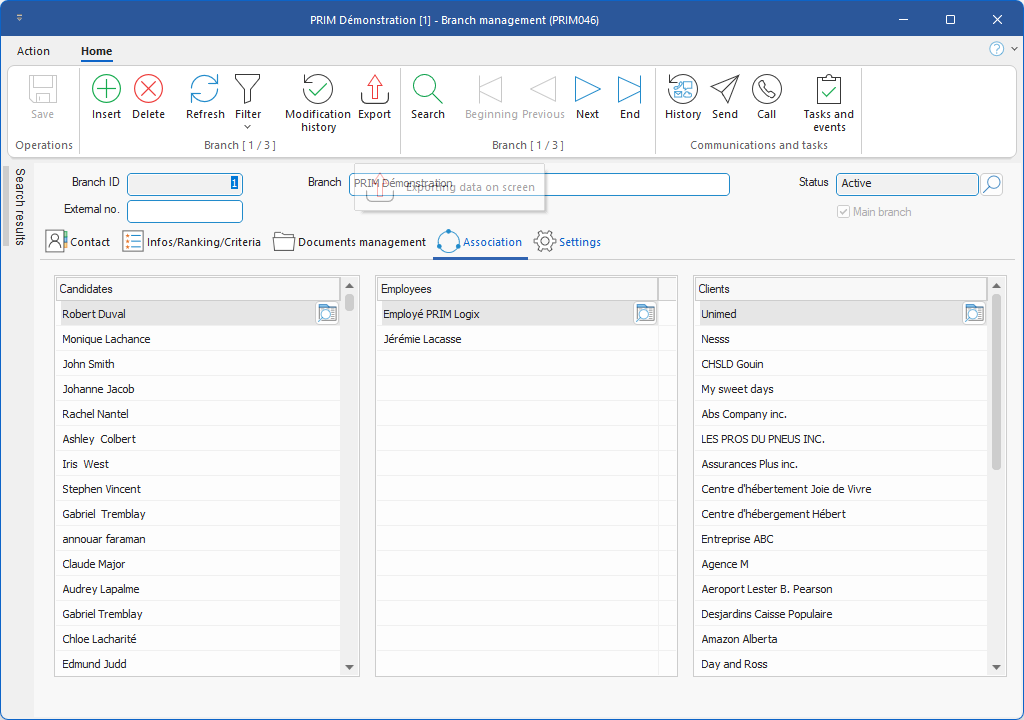
Under this tab, you will find the list of candidates, employees and clients associated to the branch.
ⅰ To add a candidate, an employee or a client to the branch, you must designate the branch as the default branch in the corresponding file.
|
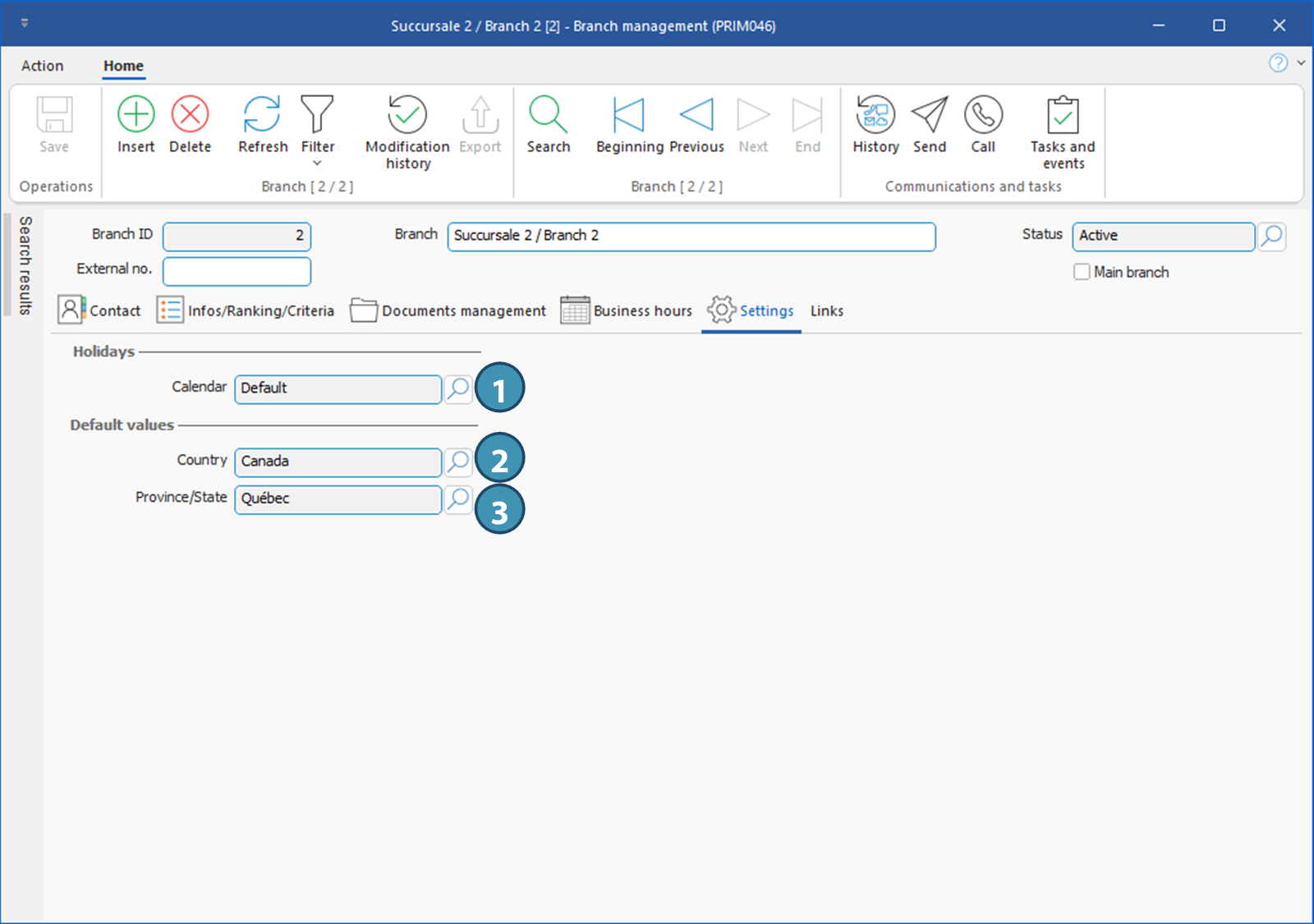
Under the tab Settings, you will be able to select the regional default values for the branch, as well as the holiday calendar associated to the branch.
1.Select a default holiday calendar in the drop-down list.
ⅰThe calendar must first have been created in the window "Holiday calendar". Furthermore, you can also link the calendar to the branch from this window.
2.Select a country in the list of values.
3.Depending on the country selected, the third field will be displayed, if provinces or states have been configured for that country.
ⅰIf no choices of province or state has been set up for the selected country, this can be done in the configuration Window, in the pane "Country and province (CFG052)".
|
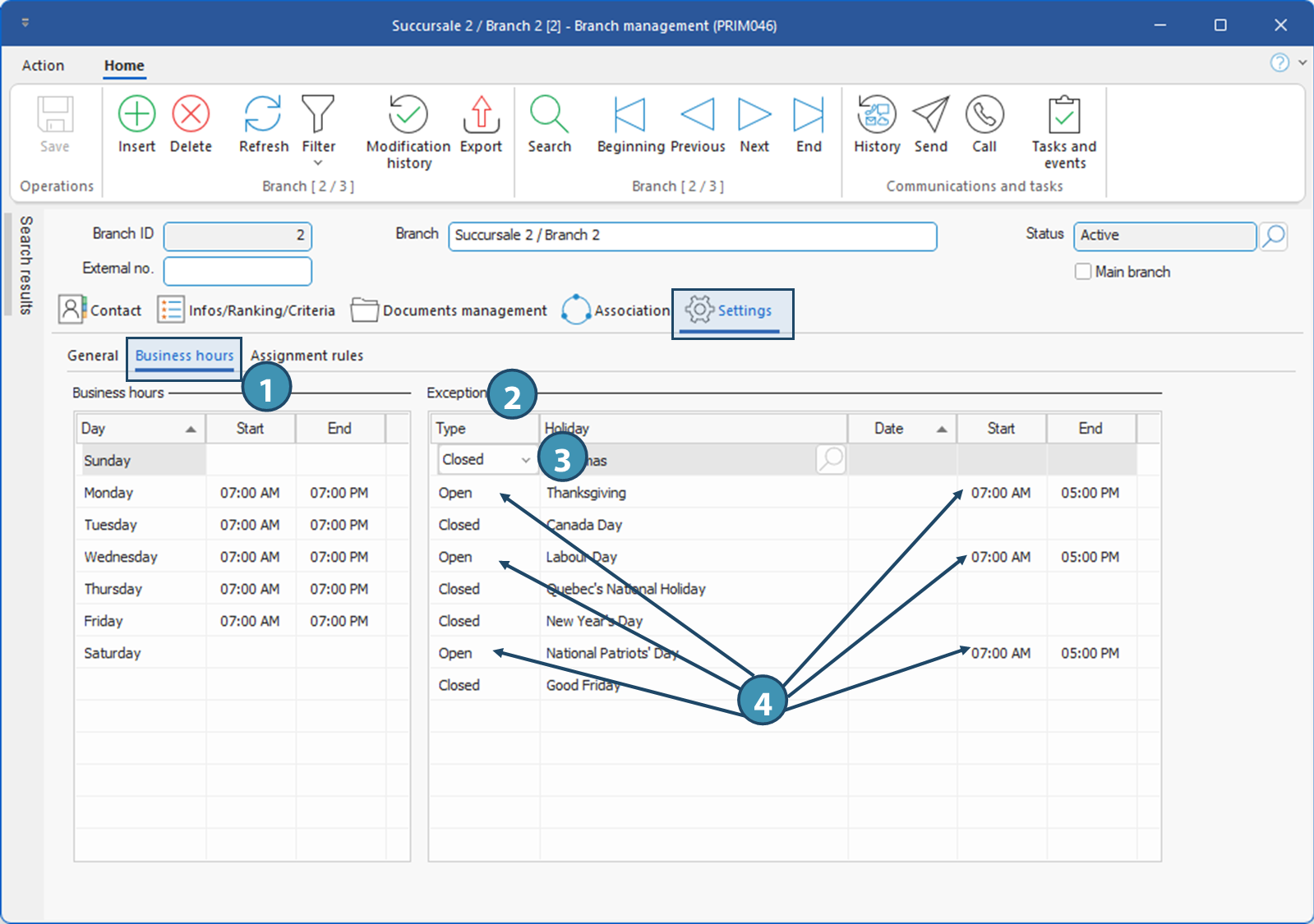
This tab allows you to specify the branch opening hours. Setting up the branch opening hours will allow you to create exceptions to the assignment method when the branch is closed.
To add opening hours:
1.In the section Business hours, just add the regular business hours (start and end time) for each day the branch is open.
2.If the branch closes on some public holidays, add each holiday in the right section, Exceptions.
3.Specify Closed in column Type if the branch is closed all day.
4.If you open with different hours on some holidays, you still need to add the day in the right-hand section, but specify Open, and the branch's business hours for that specific holiday.
|
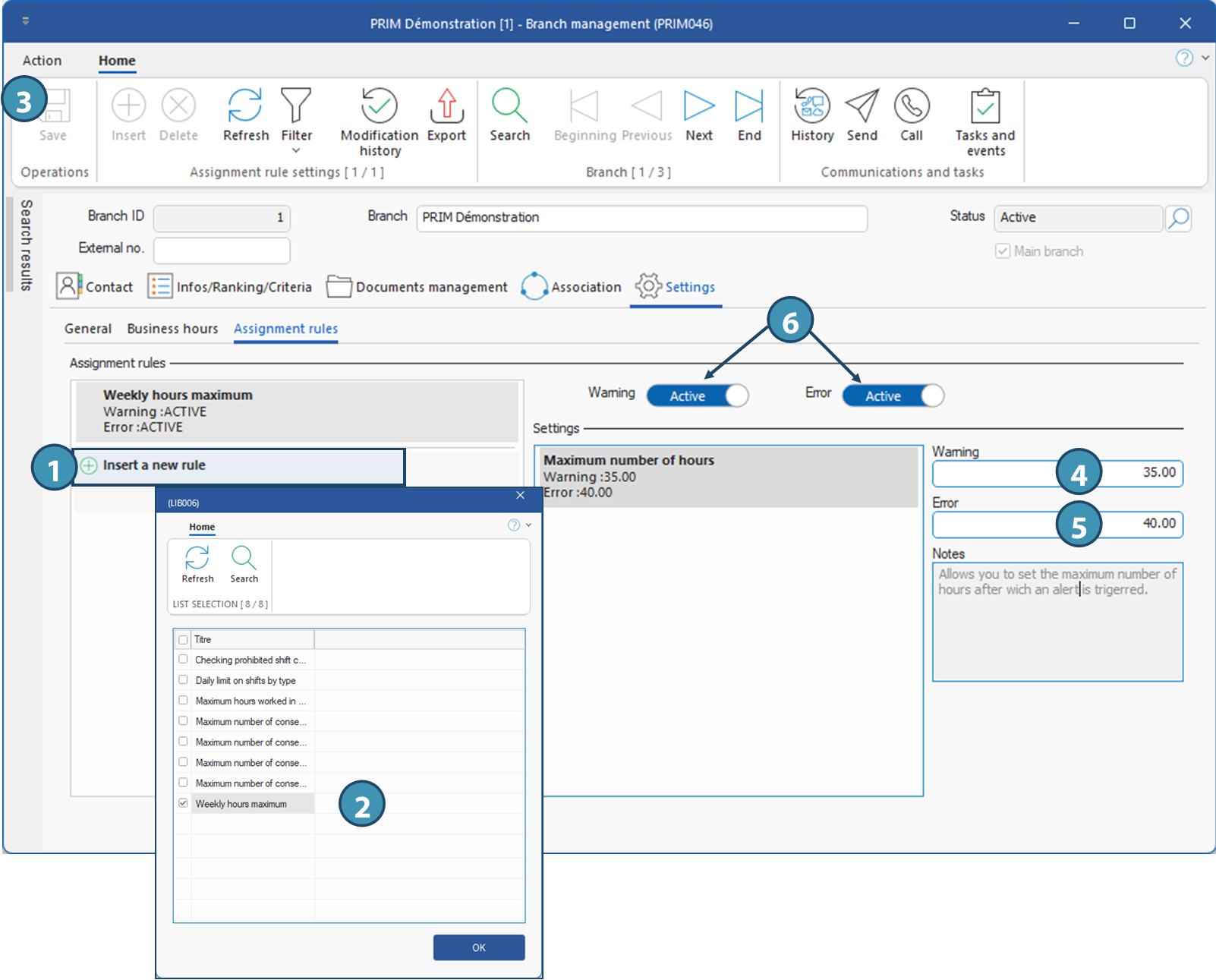
This tab allows you to configure assignment rules based on established thresholds. If the thresholds specified in these rules are reached or exceeded when a candidate is assigned, a warning will be issued in the planner, or the assignment will be blocked, depending on what is specified in the rule. Our basic configuration already offers a number of easy-to-configure rules, which are explained in the table below.
Configuring an existing rule
1.On the left, click on Insert new rule.
2.In the window that appears, tick the rule you wish to insert, then click OK.
3.Once the rule has been added to the window, save it by clicking on  or by using the shortcut keys (F1 or CTRL + S). or by using the shortcut keys (F1 or CTRL + S).
4.On the right, in the Warning field, enter the threshold at which you wish to receive a warning in the planner, if applicable.
5.Also on the right, in the Error field, enter the threshold at which you wish to block the candidate's assignment in the planner.
6.To apply this warning or blocking error, move the corresponding switches to the right, then save again.
ⅰAdding a rule requires a recalculation of all planner's data, which may cause a slowdown and incomplete data display in the planners during recalculation. For this reason, we recommend that you perform this operation at a time when the system is less busy.
Rules proposed with the basic configuration
RULE
|
DESCRIPTION AND PURPOSE
|
Weekly hours maximum
|
Rule used to calculate whether a candidate will exceed the weekly hours limit when assigned.
|
Maximum number of consecutive day shifts
|
Rule used to check whether a candidate will exceed the maximum number of consecutive day shifts allowed with the assignment.
|
Maximum number of consecutive evening shifts
|
Rule used to check whether a candidate will exceed the maximum number of consecutive evening shifts allowed with the assignment.
|
Maximum number of consecutive night shifts
|
Rule used to check whether a candidate will exceed the maximum number of consecutive night shifts allowed with the assignment.
|
Maximum number of consecutive working days
|
Rule used to check whether a candidate will exceed the maximum number of consecutive working days allowed with the assignment.
|
Check for prohibited shift combinations
|
Rule used to calculate whether a candidate will respect the following points during his/her assignment:
- Number of day/evening/night shifts worked in a single day.
- Verification of the compatibility of shifts according to their type (day/evening/night) and their relative position in time.
For each type of shift (day, evening, night), compatibility rules are defined to determine :
- Which types of shift can be followed
- Which types of shift can coexist within the same day
- Which shifts can precede each other
|
Maximum working hours in a 24-hour period
|
Rule for calculating whether a candidate will exceed the limit of authorized hours worked in a 24-hour period
|
Daily shift limit by type
|
Rule to limit the number of shifts of each type (Day/Evening/Night) per day.
|
|
 Association