WARNING: This section is intended for advanced users and "Super users" of PRIM Logix.
The configuration items presented in this section may indeed have an impact on your operations.
If in doubt, consult your system administrator.
Please note that only users in the appropriate security groups can access the software configuration windows.
Windows (CFG010)
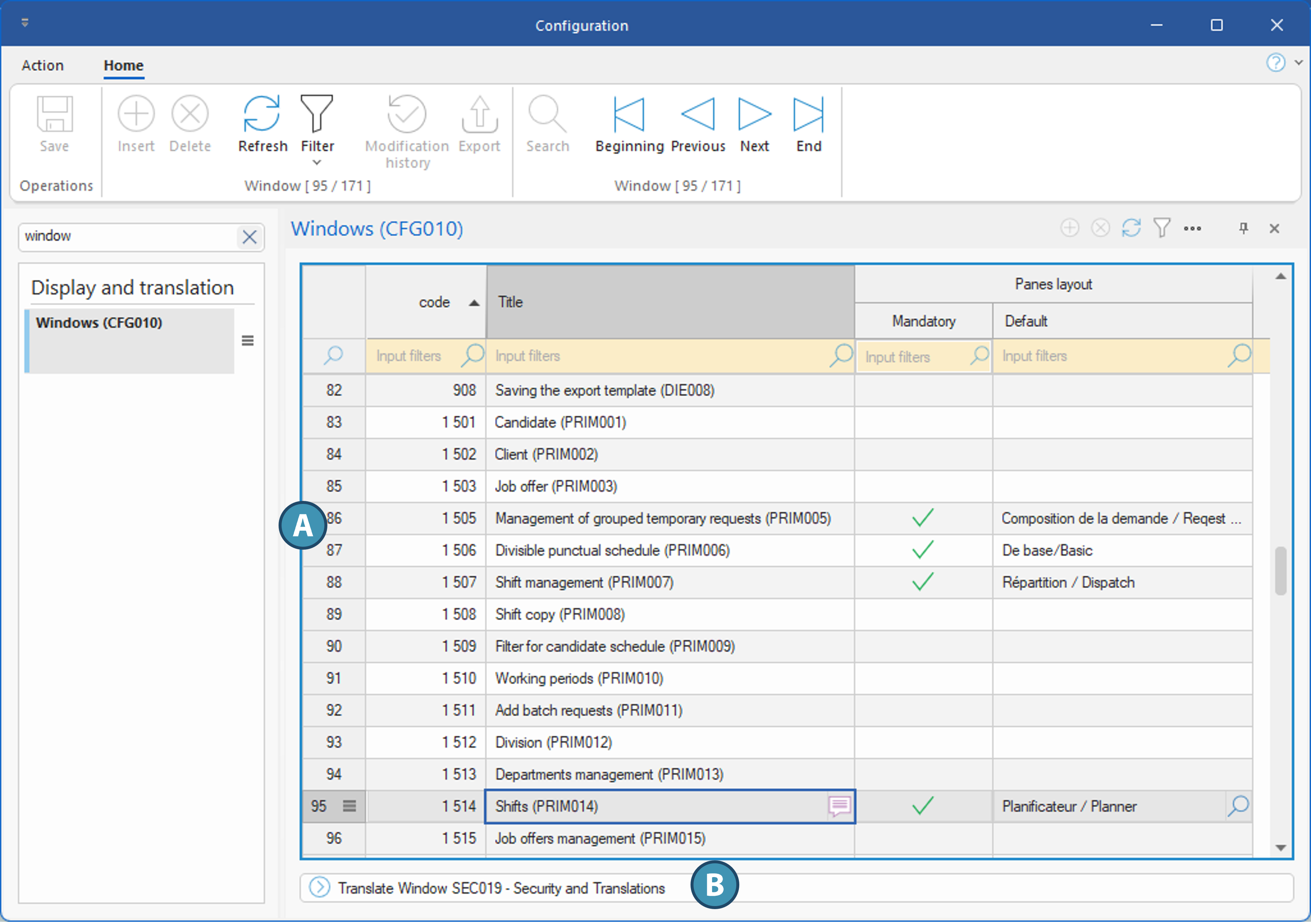
This pane lists all the windows available in PRIM and allows you to modify or translate the name displayed at the top of the window, as well as add a default layout for all users and security groups that do not already have one.
Window Overview
The pane displays the various windows in a table format (A). Here is an explanation of the content and purpose of the columns:
•Code: This code is the window’s unique identifier in the system. It cannot be modified.
•Title: This is the name of the window, which is typically displayed in the blue bar (colored theme) at the top of the window.
When a row is selected, the translation tooltip  appears to the right of the name, allowing you to edit the label in the various languages configured in your system.
If you decide to change the name of a window in your system, we recommend keeping the designation in parentheses—for example, (PRIM014). This designation will facilitate communication with our team in the event of an issue with the window in question.
•Pane Layout: The two columns in this section indicate whether a default pane layout exists and is configured in the relevant window for users or groups that do not have one defined.
▪Required: If the checkbox is selected, this means that using a display layout is strongly recommended for the window to function properly.
▪Default: This column allows you to select or modify the default layout in the relevant window for displaying floating panels. Click the magnifying glass icon to view the existing layouts for this window and select one as the default.
For more information on creating layouts, see the page “Customize the Configuration of Movable Panes.”
Translate Window SEC019 - Security and Translations Button (B)
This button provides access to the translations of the fields in the SEC019 window, as well as to the security restrictions and settings for this window, which specifically allows you to perform these operations in all other windows in the system.
To translate or add restrictions in any other window, open the SEC019 window from the “Action” menu, the “Window Security Settings” option in the relevant window, or the “Ctrl + Alt + S” shortcut if the menu is not available in a window.