WARNING: This section is intended for advanced users and "Super users" of PRIM Logix.
The configuration items presented in this section may indeed have an impact on your operations.
If in doubt, consult your system administrator.
Please note that only users in the appropriate security groups can access the software configuration windows.
Menus (CFG011)
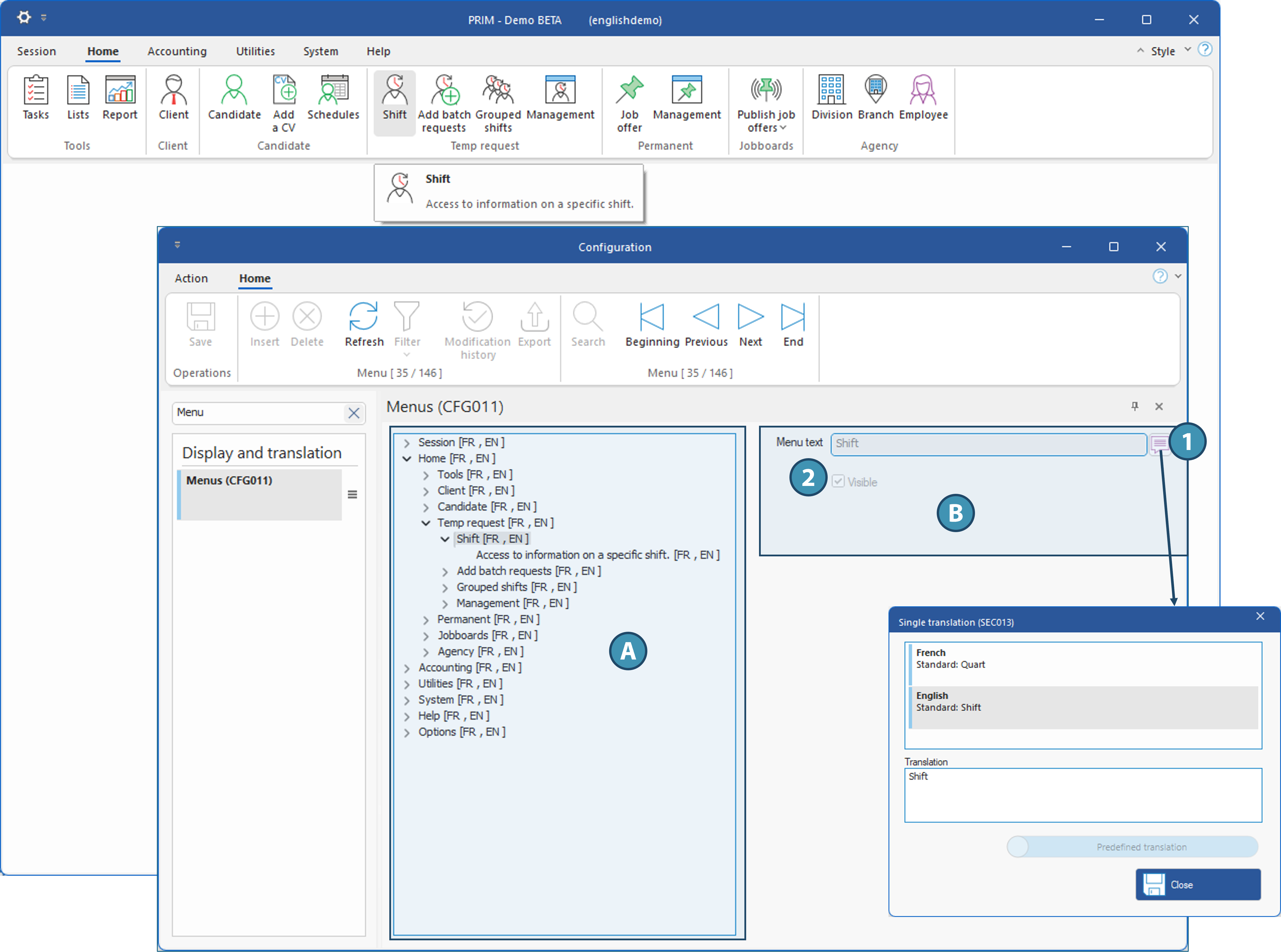
This window lists the items found in the ribbons of the PRIM main window. You can not only translate or modify the labels, but also hide certain items that will not be used in your agency.
Overview of the Window
The window is divided into two sections:
A.Menu and section tree: The menu is organized hierarchically with various nodes that can be expanded to access submenus
B.Label and visibility of the selected item: allows you to access the translation tooltip to edit the label and also to determine whether the option will be visible or not.
Menu and section tree (A)
This tree can be expanded to view the sub-menus, and here is a description of the various nodes that make it up:
•Level 1: Each element at the first level of the tree represents a menu or ribbon in the PRIM main window. In our example, we have expanded the node corresponding to the Home ribbon.
•Level 2: Generally, each ribbon is divided into sections that group certain functions, with a label at the bottom of the section. This second node therefore corresponds to the section and its corresponding label. For example, the Temporary section of the Home ribbon.
•Level 3: The third level corresponds to a command that opens the corresponding window. For example, the shift window (PRIM014).
•Level 4: This is a descriptive text for the window that the previous button opens.
Label and Visibility of the Selected Element (B)
1.Click the “  ” tooltip to open the per-unit translation window and edit the label of the selected element in all languages configured for your system.
Changing the label will not change the name of a window; it will only change the label of the corresponding button in the menu. The names of windows when they open are instead modified in the “Windows CFG010” pane.
2.Checking or unchecking the Visibility checkbox allows you to show (checkbox checked) or hide a system element. For example, to hide the button that opens a window, uncheck the corresponding item. For all options in a ribbon or section, uncheck the box for that ribbon or section.
For the changes to take effect, you’ll need to restart PRIM.
This window does not allow you to hide options for specific users only. To restrict access to certain windows, you must instead manage access based on security groups.