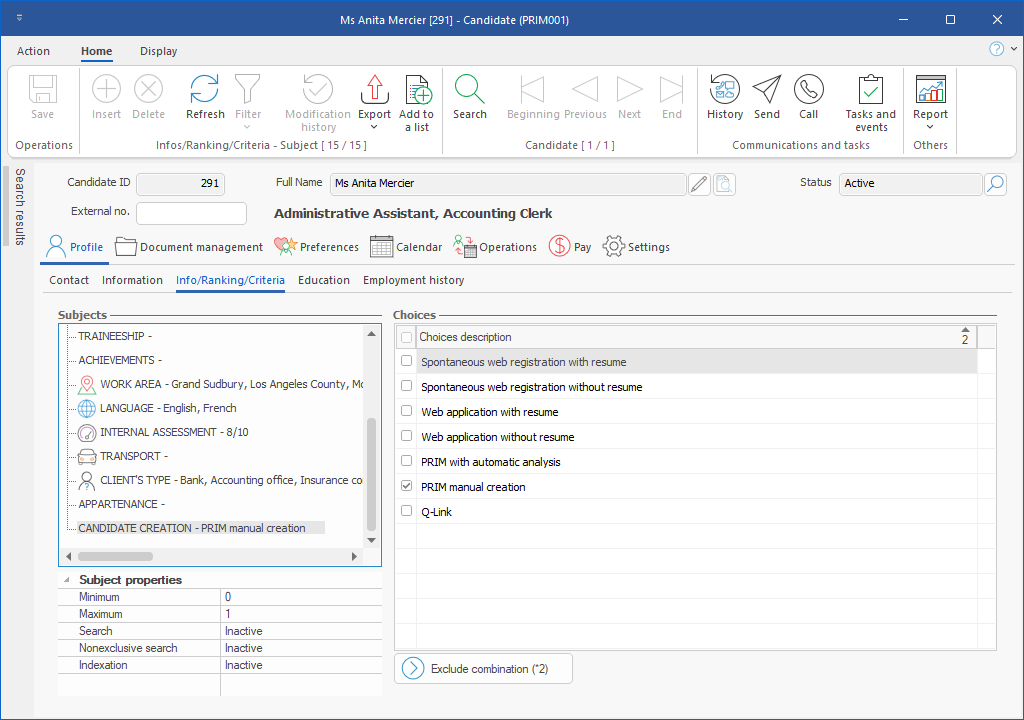
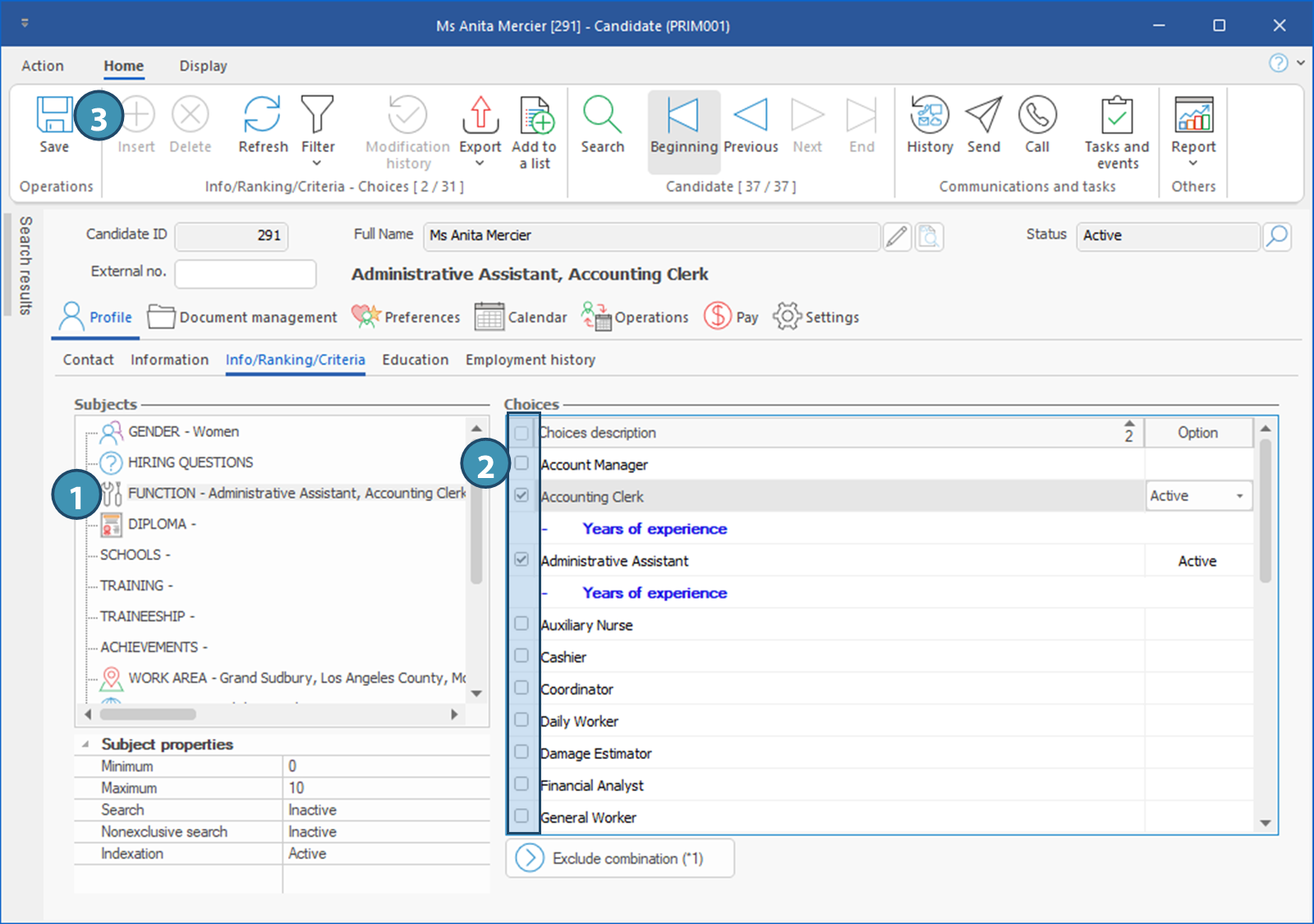
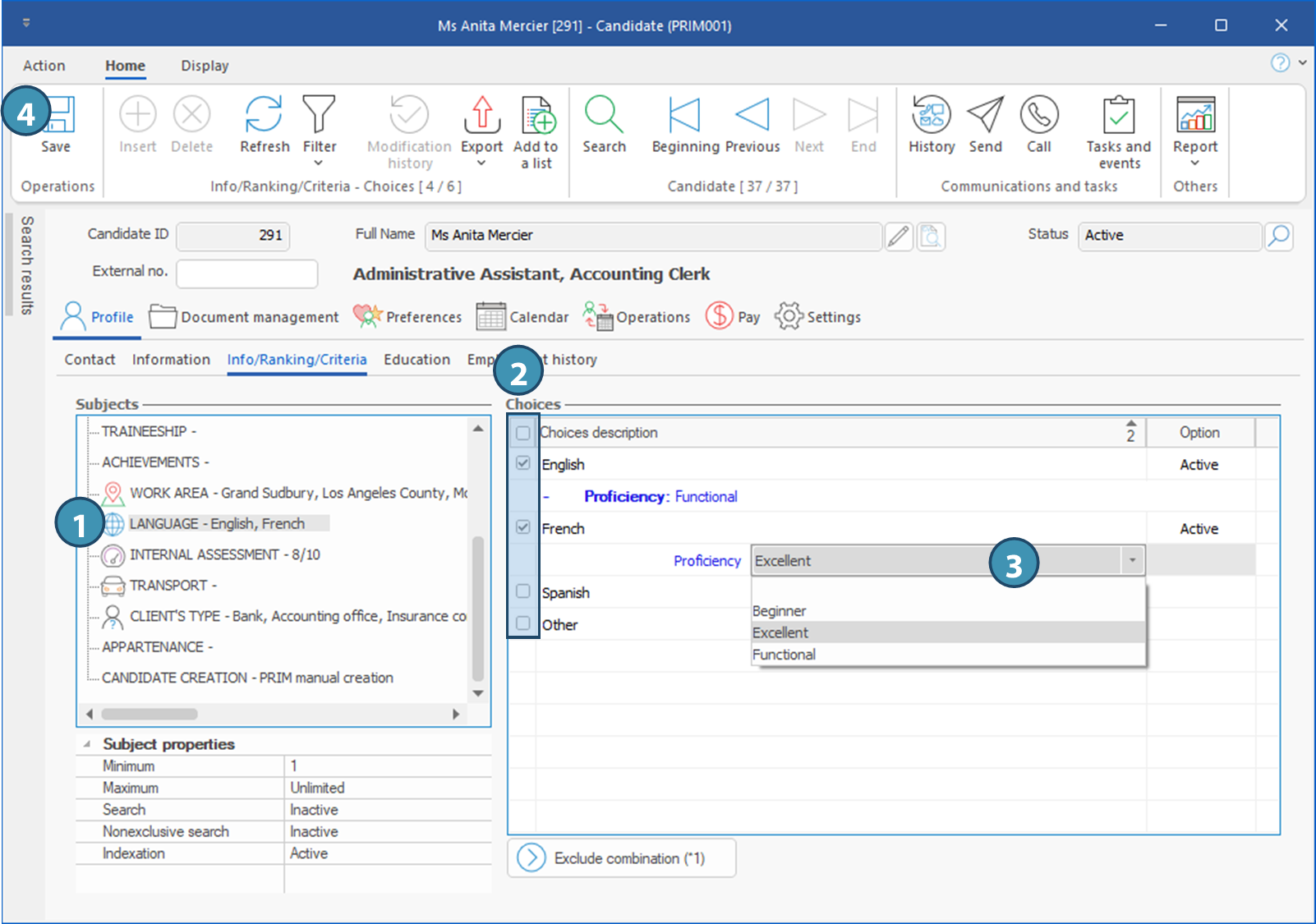
This tab is divided in 3 sections : subjects, subject properties and choices.
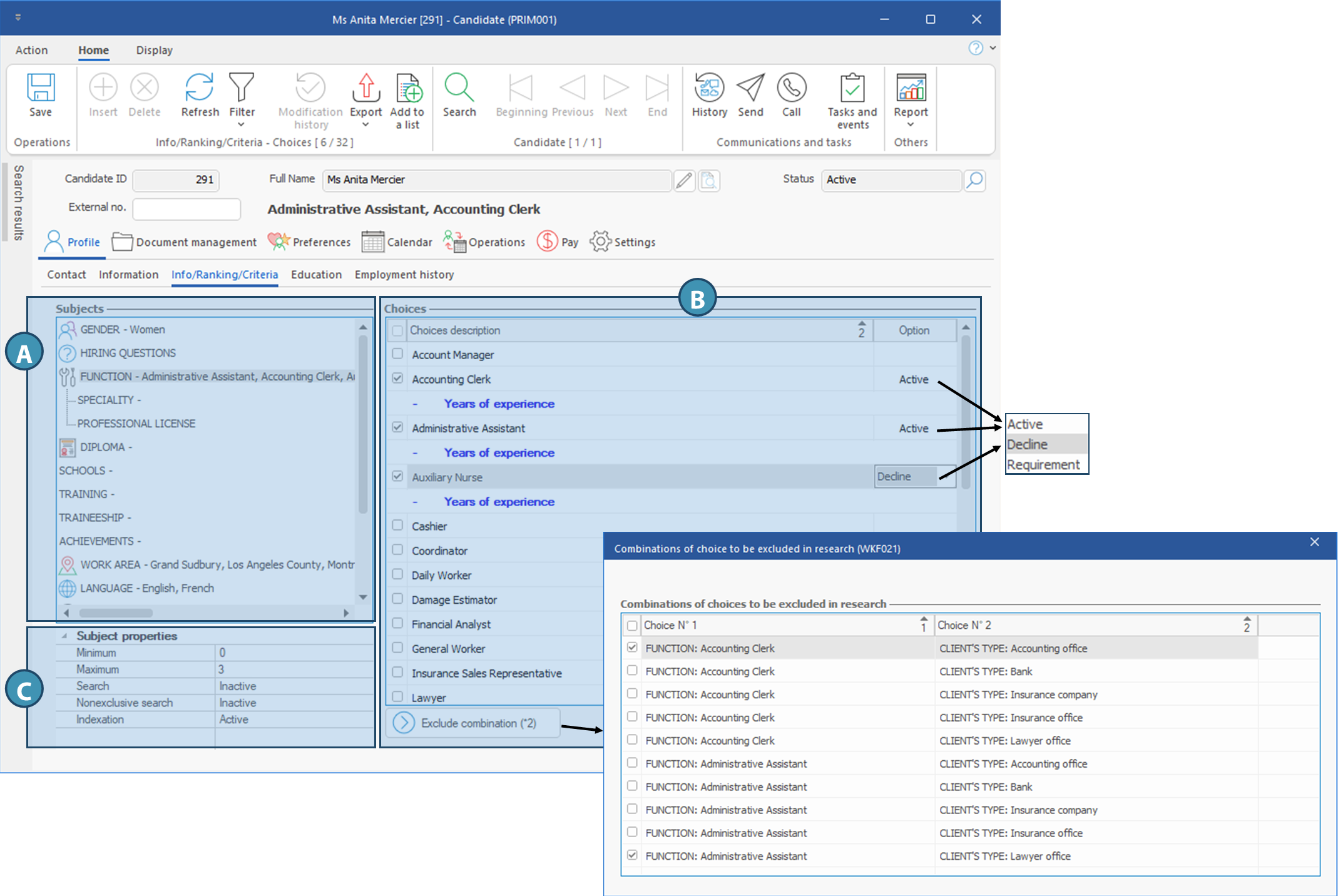
Subjects (A)
In this section, you will find a list of subjects that will be use either for information purposes, to define or classify the candidate, or that might be taken into consideration as criteria for matching with job offers or shifts requests. Each subject is associated with properties, and offers a list of choices to be ticked off or additional information to be specified. This subjects list is fully customizable and can therefore be adapted to your needs. However, some of the subjects included in the basic configuration are essential to the smooth running of your operations, such as function, work area and client type. These subjects will be used as criteria to find the right candidates, but other subjects specific to your agency could also be used for this purpose.
Subject properties (B)
This section displays the properties of the selected subject. If the properties requirements are not satisfied for some subjects, an error message will be displayed when trying to save, inviting your to review these.
Minimum: Indicates the minimum number of choices to be ticked
Maximum: Indicates the maximum number of choices that are allowed
Search: Not applicable for candidates. This property can be active for subjects in clients or requests and will allow matching with candidates, if same subject is active for indexation in candidates.
Nonexclusive search : Not applicable for candidates. This property can be active for subjects in clients or requests and will allow matching with candidates, if same subject is active for indexation in candidates.
Indexation : If this property is active on a subject in the candidates files, this means this criteria will be considered for matching with client's requests. In order for the matching to occur, the same subject must be added and activated for search in clients or requests.
Choices (C)
Each subject is associated to a list of choices or options, and sometimes additional information can be added for each selected choice or option, depending ont the subject.
For exemple, for a subject such as Professional license, choices could be the license type, and a field can be set up allowing you to specify the license number, expiration date, etc.
Finally, for criteria that will be used for matching with job offer or clients, the choices can be qualified as follow:
Active: This option is the default value. The candidate will be displayed in the planner for matching requests, as long as other criteria are also met.
Requirement: The candidate will be displayed in the planner only for request matching this choice, no matter what other options are checked. If the choice is checked with that qualifier, other choices ticked for the same subjected will be excluded, even if the candidate have the required skills.
Decline: The candidate décline any offer matching this choice. If this option is selected for a choice ticked, this means the candidate does have the required skill, but will refuse offers of this type, and therefore, will not be displayed in the planner for missions of this type.
 : This button allows you to exclude some choices combination. After saving the candidate's choices, PRIM creates a list of combinations of functions and client types selected in the file. Click on this button to display the window Combination of choices to be excluded in research, and tick the combinations matching the restrictions expressed by the candidate. : This button allows you to exclude some choices combination. After saving the candidate's choices, PRIM creates a list of combinations of functions and client types selected in the file. Click on this button to display the window Combination of choices to be excluded in research, and tick the combinations matching the restrictions expressed by the candidate.
The number between parenthesis on the button indicates the number of combinations to be excluded. In the example below, the candidate has 2 active functions : Accounting clerk and Administrative assistant, but mentioned not being interested to work as an administrative assistant in a lawyer's office, nor as accounting clerk in an Accounting office.
|