Contact information
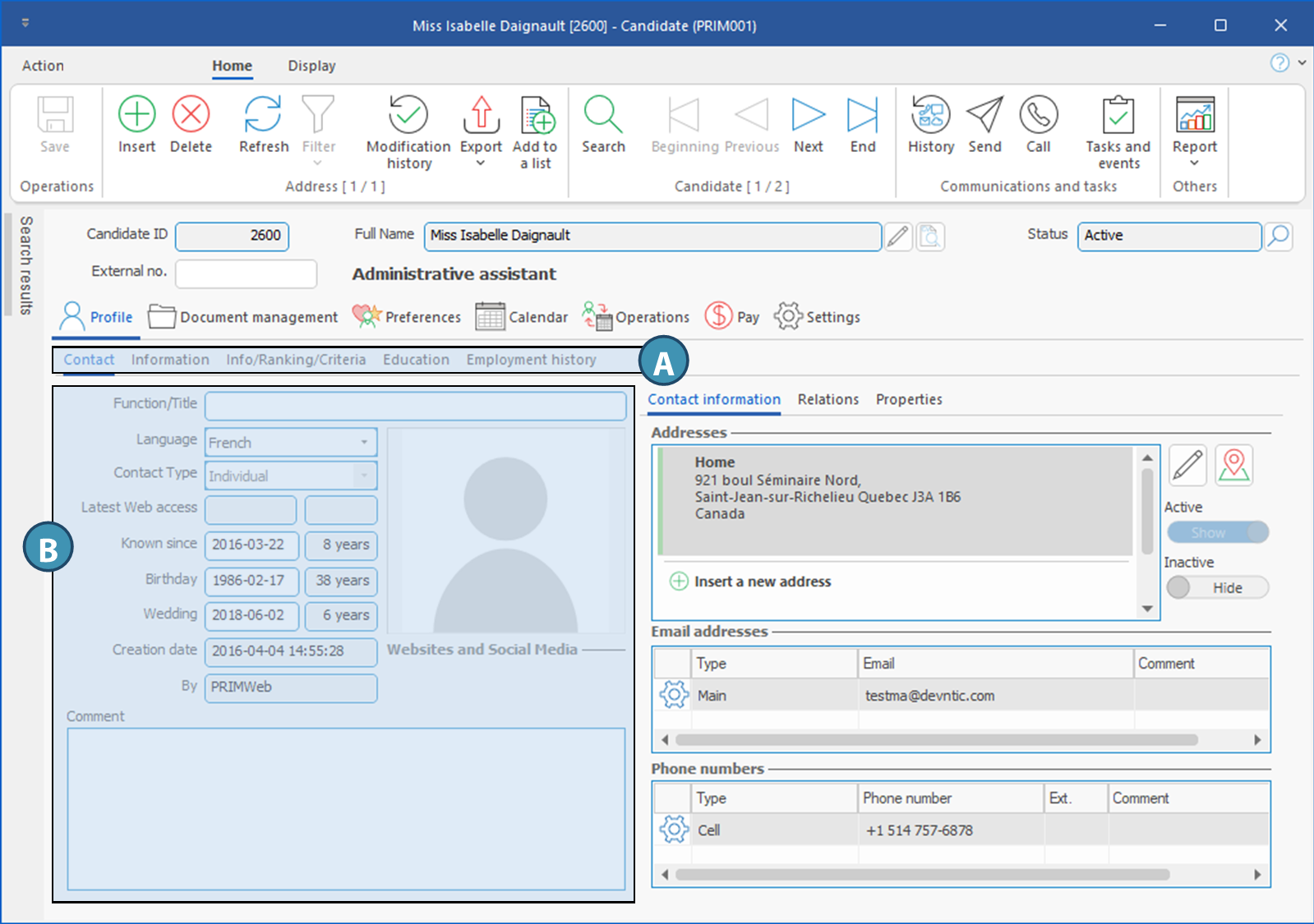
This sub-tab allows you to add the main contact information for the candidate : street address, email addresses (B), phone numbers (C).
ⅰFor each contact information type, it is possible to specify if it is "Main" or "Secondary". Some additional settings, such as properties, are specific to a contact information type.
To add a contact information:
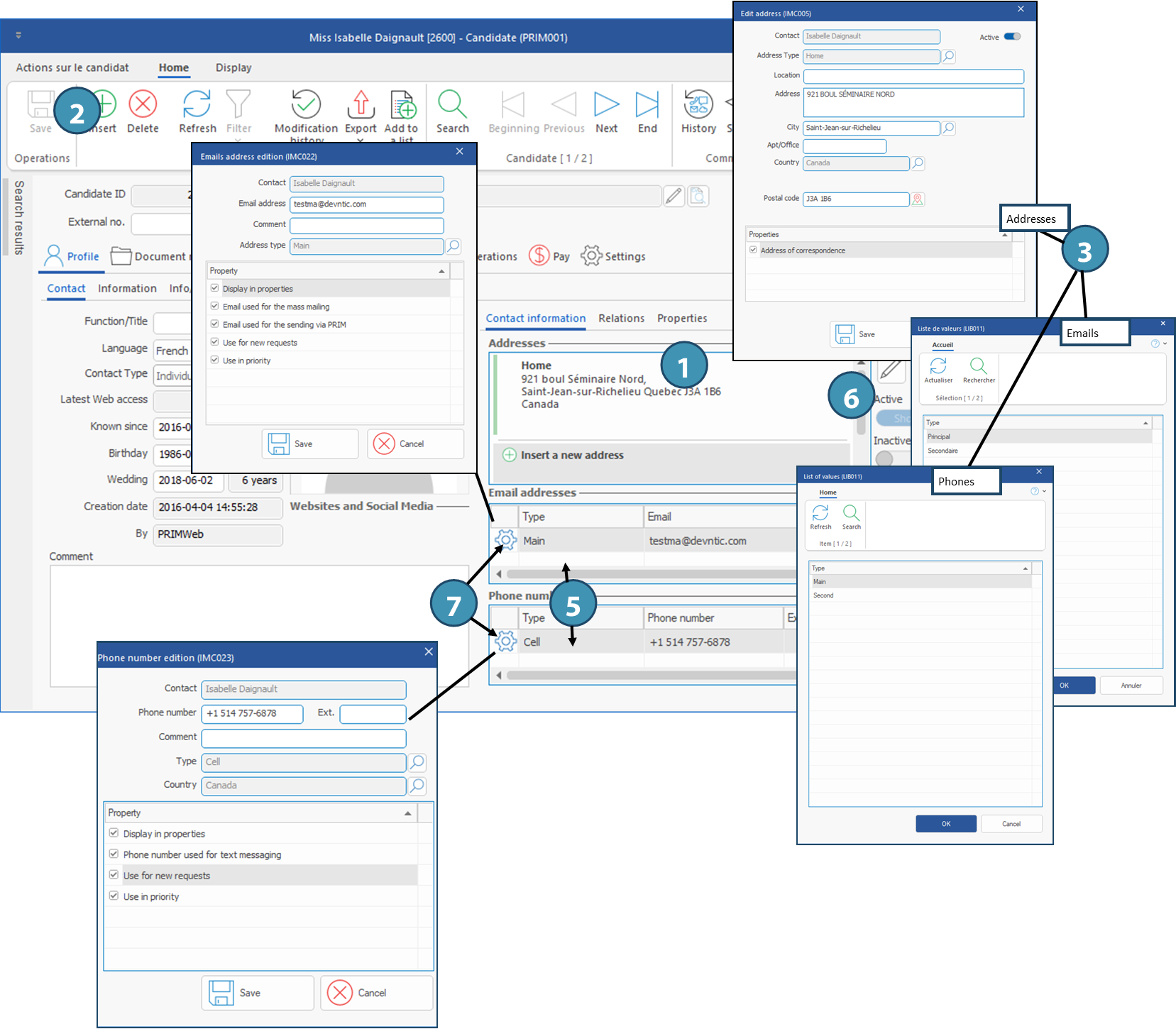
1.Select the concerned section: the section will display a thin blue frame. ln the example below, the section Addresses is selected.
2.Click on  (Insert) in the Home ribbon of the client window. (Insert) in the Home ribbon of the client window.
ⅰFor emails and phone numbers, it is also possible to click on an empty line to add an item.
3.A List of values window is displayed, allowing you to specify if this is a "main" or "secondary" contact information, as well as other settings depending on the contact information type. Select all the values that apply and fill in the the required fields.
4.Click on OK (email, phone) or Save (address).
5.For emails or phone numbers, specify the email address or phone and extension on the line that has been added, as well as any relevant comment.
To modify a contact information or specify it's properties:
6.Addresses: Select the address and click on  to the right of the section. to the right of the section.
7.Phone or email: Click on  in the left column of the relevant line. in the left column of the relevant line.
Relations
This sub-tab allows you to designate contacts as the candidate's contacts. These contacts may already exist in PRIM, or they may be created from this tab. Although its use is generally different, notably in terms of the type of relations added, the operation is exactly the same as for adding relations to a client. Please refer to this page for more details.
|

 in this section to add the URL of social medias or web pages of the candidate.