WARNING: This section is intended for advanced users and "Super users" of PRIM Logix.
The configuration items presented in this section may indeed have an impact on your operations.
If in doubt, consult your system administrator.
Please note that only users in the appropriate security groups can access the software configuration windows.
Candidate types (CFG059)
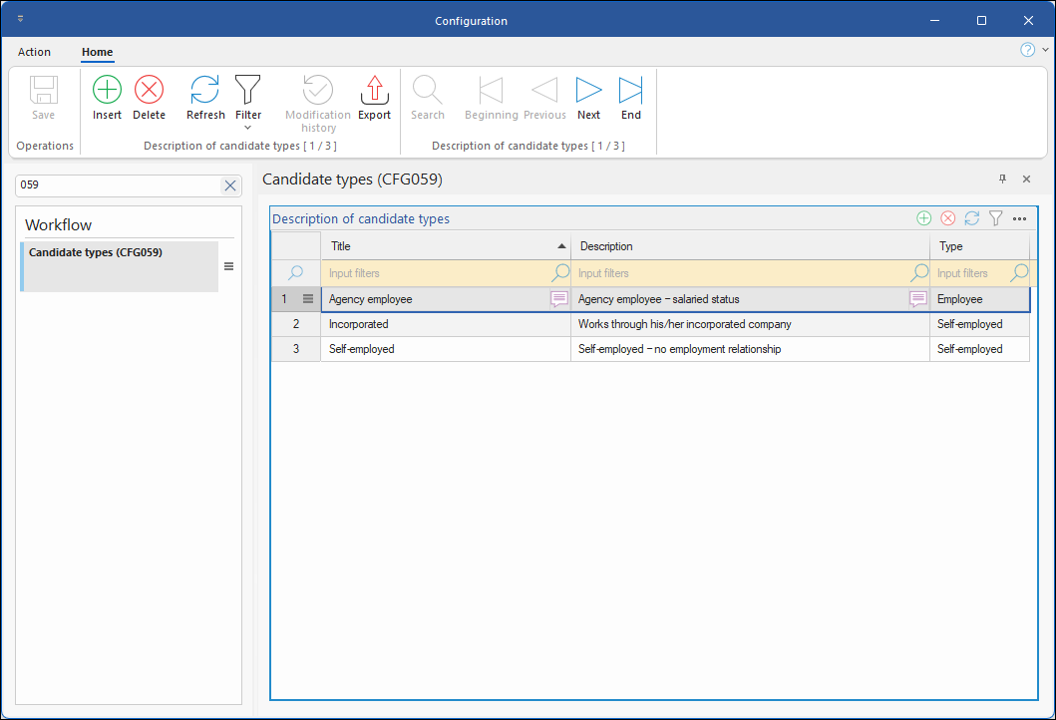
New in version 5.9, this window allows you to configure different types of candidates within your agency, as well as how they will be paid by the agency – either as employees (standard payroll) or as self-employed workers (pay issued as an invoice). The default configuration offers three types of candidates: Employee, Incorporated, and Self-Employed. However, the agency can create additional candidate types to meet its specific needs. The type is selected in the Information tab of the candidate’s profile.
Overview of the Window
The window is actually very simple, taking the form of a table with only three columns:
•Designation: This column displays the designation of the employee type as it will appear in the employee’s record – below their name and after their job title – as well as in the drop-down menu used to select the employee type. This description can be translated into the various languages of your system by clicking on the translation icon.
•Description: This column allows you to add a more detailed description of the candidate type, which will appear in the candidate type selection window within the candidate’s record.
•Type: Specifies whether the candidate type created is an “Employee” and will be paid via standard payroll with payroll deductions, or whether it will be considered a “Freelancer,” allowing payroll to be generated in the form of an invoice.
To create a new candidate type, simply click the “Insert” button on the “Home” ribbon or in the table’s advanced functions menu , and fill in each column.