On-screen data export (DIE007)
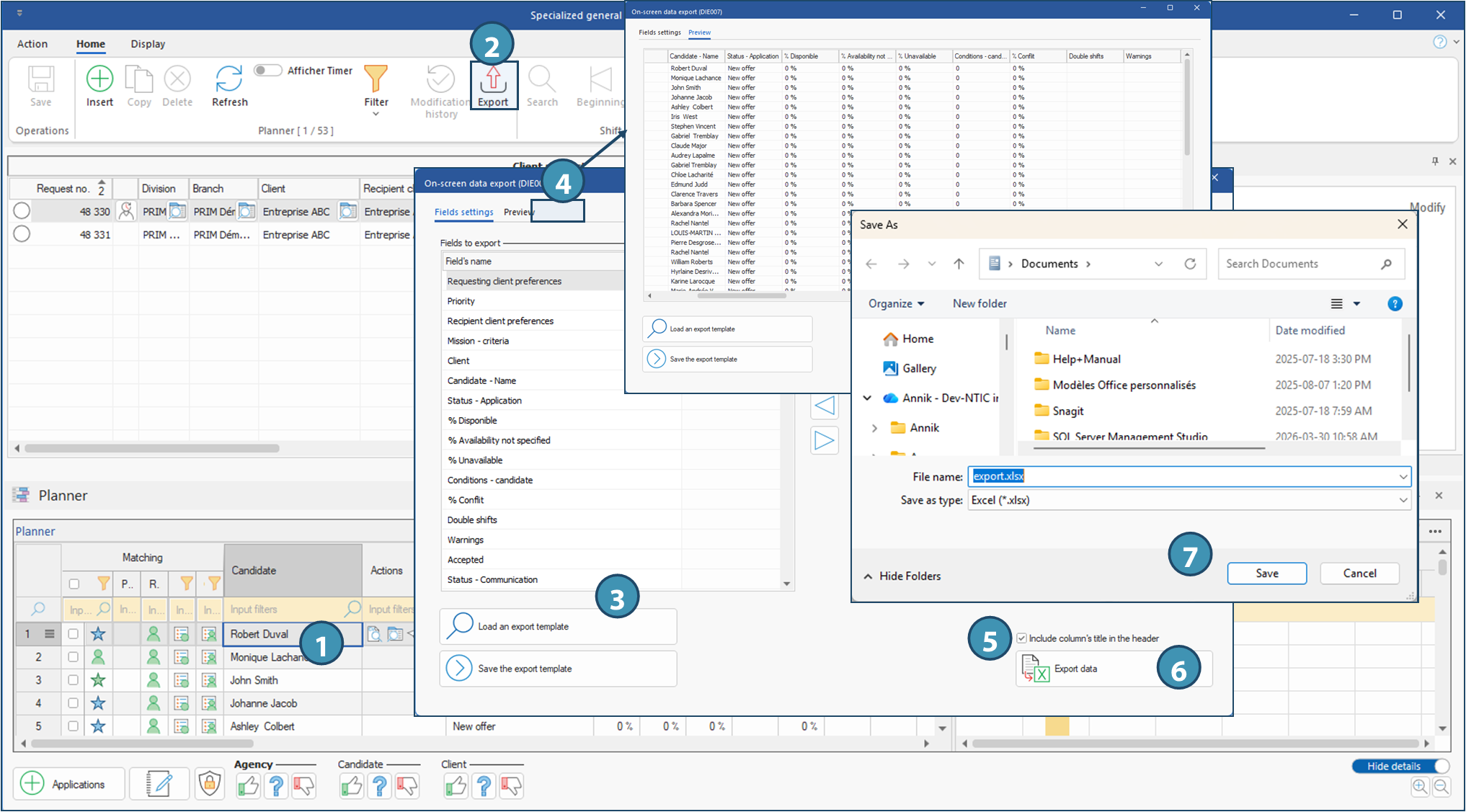
This type of export allows you to export data from any PRIM window, as well as from certain panes: for example, a list of applications from the ATS or the planner. It is particularly useful for displaying data in tabular form, or sharing it with others who do not have access to PRIM. Export is performed from the DIE007 window, by clicking on the Export button on the Home ribbon from any window.
 Overview of the DIE007 window
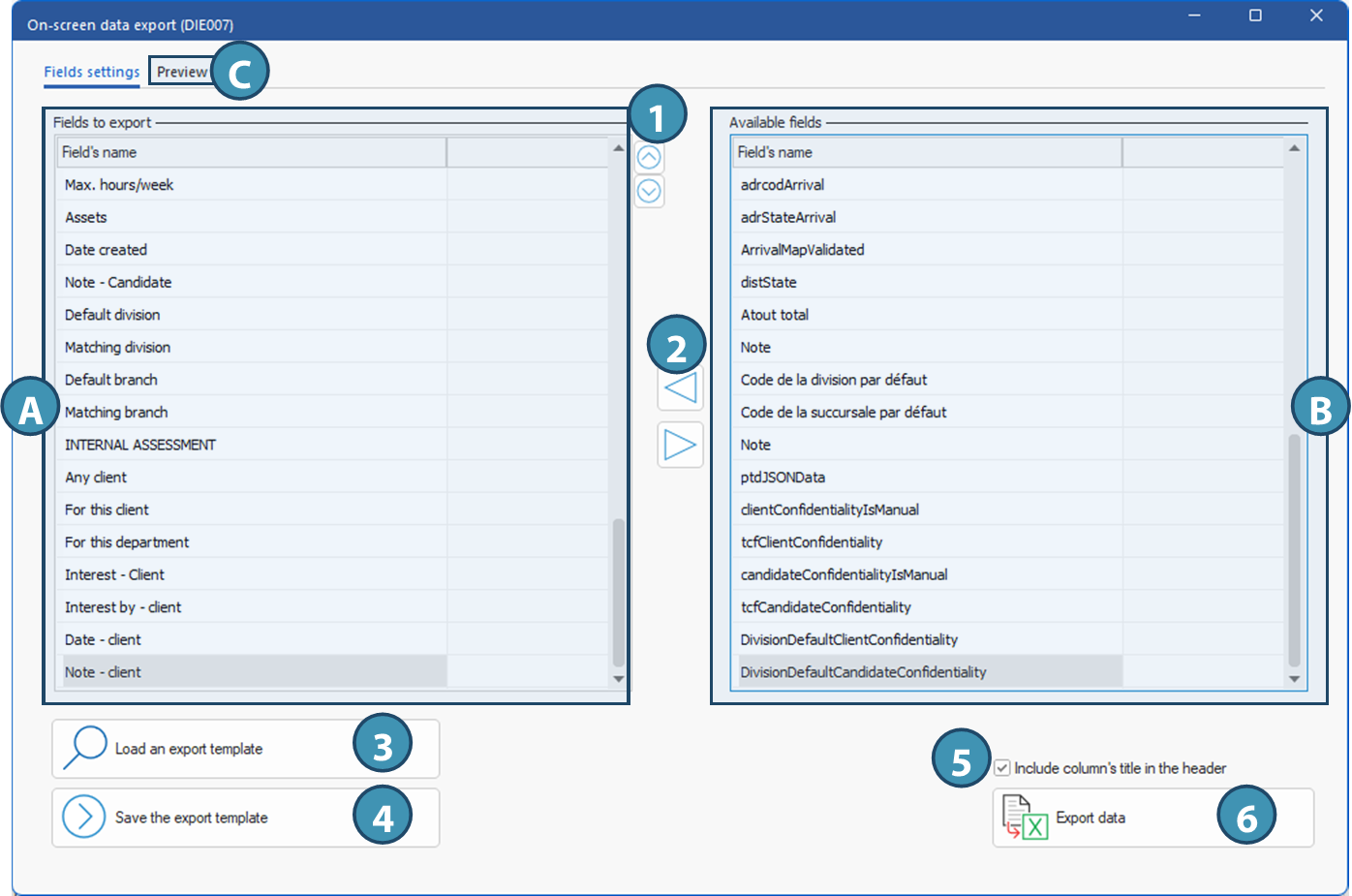
Very simple to use, this window is divided into 2 main sections: A.Fields to export: By default, all visible fields in the section of the window for which you wish to export the data will appear in this section when the window opens. To remove some fields from the export file, move them to the right using the arrows in between. B.Available fields: This section shows fields that are available but not visible on the screen. To add these fields to the generated file, move them to the left. C.Preview tab: Click on this tab to preview the result in table form.
The various buttons in the window allow you to perform different actions:
1. These up and down arrows change the order in which the fields to be exported appear in the generated Excel file. 2. These arrows, from left to right, are used to add or remove fields to be exported. 3. Loads a previously saved export template for a similar data set. 4. Saves an export template, which will include the fields indicated in the export fields section. 5. Check this box to include column headers with the relevant field labels. 6. This button saves (exports) the data to an Excel file on your computer, in .xlsx or .csv format.
|
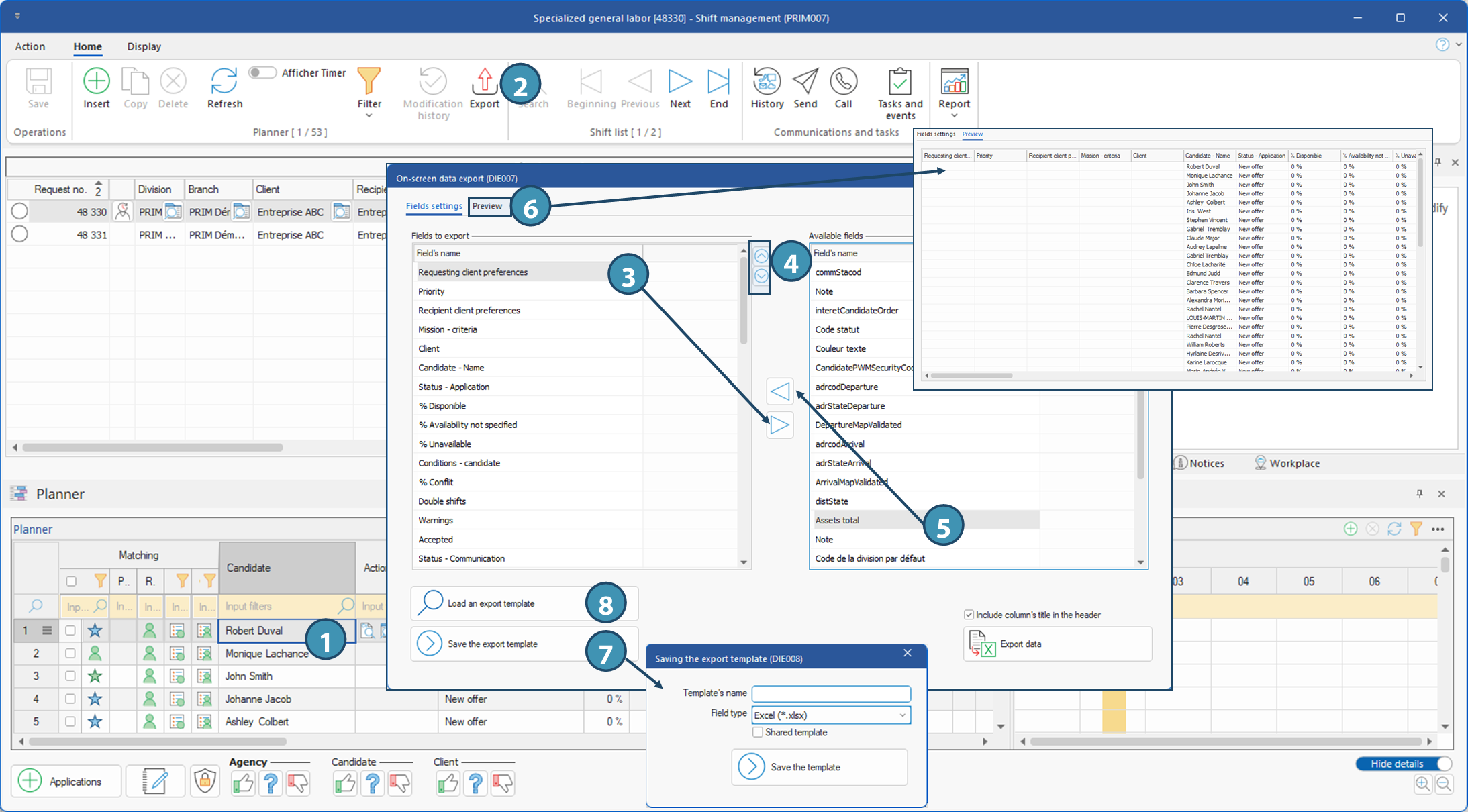
 Save and reuse a data export template
Export data